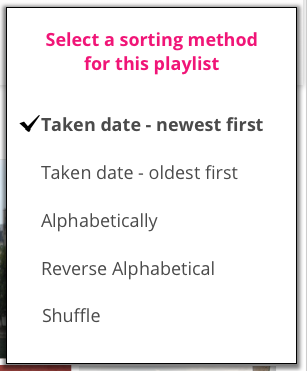
PhotoSpring can order photos and videos in three different ways:
- Taken date
- Alphabetically
- Shuffle
Order by Taken Date
PhotoSpring tries to find the following information prior to ordering photos:
- EXIF data - taken date
- File data - modified date
Usually only JPG data from a digital camera or smartphone will contain EXIF data. PNG and GIF photo types do not have EXIF data so we rely on modify date.
Order Alphabetically
All photos have a name which PhotoSpring can use to order photos and videos by. This is useful if you have photos or videos that don't have dates. We can use the photo names instead. It's also useful if you have to have photos in a certain order. You can rename the photos in alphabetically order and then load them in.
Shuffle
PhotoSpring will provide a random playlist order for your photos and videos. This order will be reflected in the Playlist screen. The order in which photos are played will be randomly assigned when we reach the end of the slideshow.
How to Change the Ordering
The Sort button is on the upper right corner of the Playlist screen (see below next to the red arrow).

Tap the button and a drop down menu will appear allowing you to select your order preference.
Photos without dates
In very rare cases we get photos without EXIF or modified date information. In those cases we consider the date to be unknown and label photos as "Date Unknown". Photos with date unknown are sorted like this:
- They are always placed in the back of the playlist, behind photos that have valid dates
- They are sorted by creation date within the group of other Unknown Date photos
Changing the dates of photos
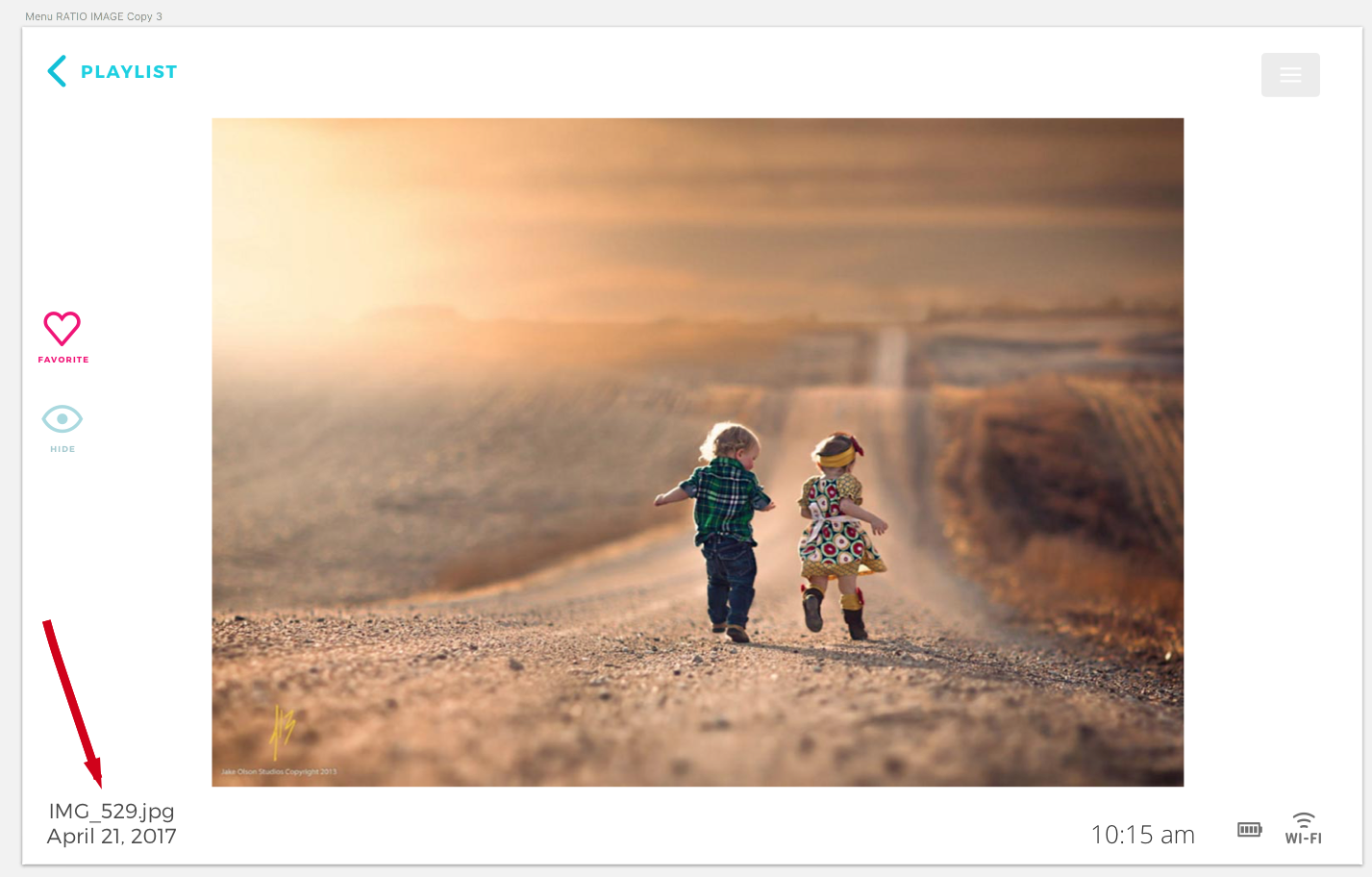
You can edit/add a date for any photo in the Photo Info screen. On the bottom left corner you will find the date for the photo. Tap that and a popup will appear that allows you to edit the date and the title of the photo.